Age Groups
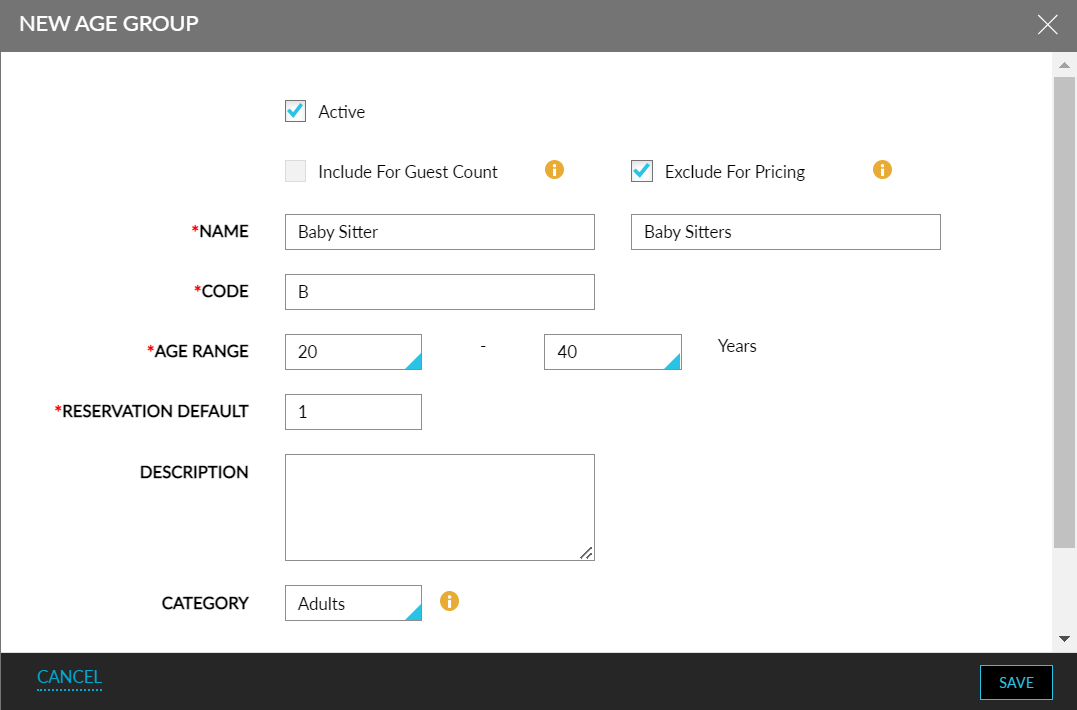
The Age Groups option allows a property to define additional age groups apart from the current setting that supports only Adults and Children. Properties can add a maximum of 10 age groups. The existing age groups, Adults and Child, can also be renamed to their choice.
The expanded age groups are also displayed in the Reservation Booking and the Reservation Screen. The updated age groups are also visible in applicable reports. The Age Groups grid displays the following details:
|
Field |
Description |
|---|---|
|
Name |
Displays the name of the age group |
|
Code |
Displays the code associated with the age group |
|
Age Range |
Displays the age range set for the age group |
|
Category |
Displays the associated category, either Adults or Children, for integration with an OTA interface |
|
Excel Age Group Name |
Displays the name of the age group as mapped in the property import/export tool |
|
Reservation Default |
Displays the number of persons in the age category by default. |
|
Include for Guest Count |
Indicates if the selected age group has enabled the option where the guest count included is used to calculate the number of guests in all reports, CC auth calculations, etc. |
|
Status |
Indicates if the selected age group is active or inactive |
|
Show Inactive |
Enable the checkbox to view all inactive age groups as well in the grid. |
The age group grid can be searched by Name or Code.
The ManageAgeGroups permissions are required for this feature and are mapped to the following roles: System Administrator.
Add Age Groups
Users create an age category to identify the non-guests staying in a room and exclude them from the guest count. The age categories that are not included for guest count are not considered for the max guest count limit of the room and extra charges are not applied to them. This age category is then associated with the required reservations.
Users can also search for a reservation in the Search screen using the name of the visitor.
Navigate to Settings ➜ All Settings ➜ General ➜ Property, buildings & outlets. The Property Setup page is displayed.
Click the Age Groups tab.
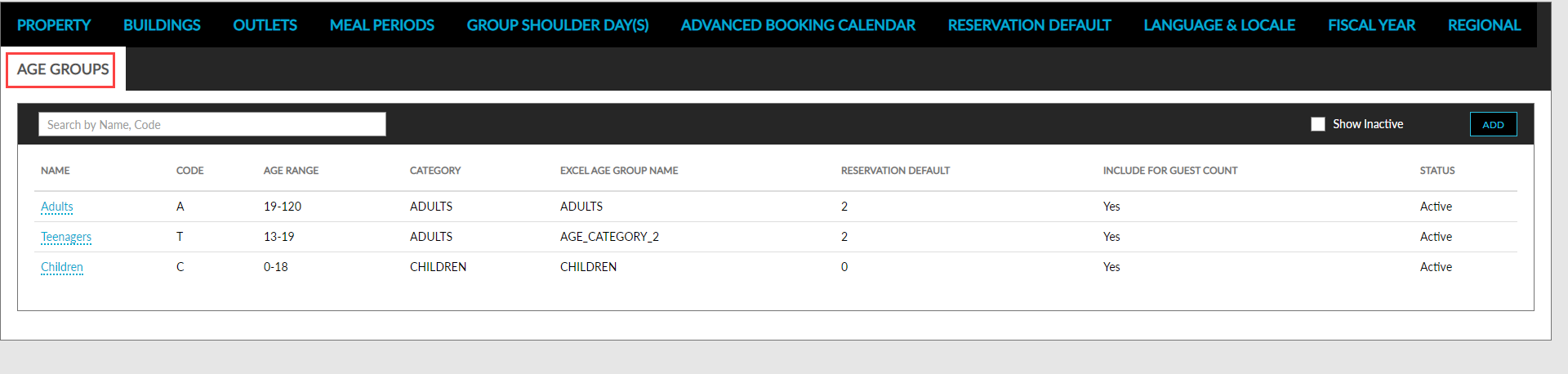
Click Add. The New Age Group screen is displayed.
Enter the following details here:
|
Field |
Description |
|---|---|
|
Active |
Enable the checkbox to activate the age group for the property. |
|
Include For Guest Count |
Enable the checkbox if the age group must be included when calculating the number of guests in all reports, CC auth calculations |
|
Exclude For Pricing |
Enable the checkbox to hide the age group from the price configuration in Rate Plan, Package, and Groups, in the Include and Extra Charge sections. This checkbox can be enabled only when Include for Guest Count flag is not enabled. |
|
Name |
Enter a name for the age category. |
|
Code |
Enter a unique code for the age category. |
|
Age Range |
Select the age range for the age category. |
|
Reservation Default |
Enter the number of persons by default. |
|
Description |
Enter a brief description for the age category. |
|
Category |
Select the category as either Adult or Children from the drop-down. It helps categorize new age groups when integrating with an Online Travel Agency (OTA) interface. |
Click Save. The new age group is now added to the Age Groups for the property.